
Video Download
Use DreamCreator to bring public or authenticated video sources into the same library and follow-up workflow.
This is where DreamCreator starts paying off
If you repeatedly collect public source media, channel material, reference clips, BGM sources, or authenticated video pages, the value of DreamCreator is not only that it can download them. The result lands inside the same library and can continue into the rest of the workflow.
Confirm two things before starting
yt-dlpis installed or repaired inside the app.- If the source requires authentication, you already have browser cookies, connector cookies, or another supported access path ready.
Without those two, jobs usually fail during source resolution instead of during the actual download.
Recommended flow
- Open the library and create a new download task.
- Paste the source URL and confirm the output location or defaults.
- If the source is restricted, provide cookies or switch to the right connector-backed access path.
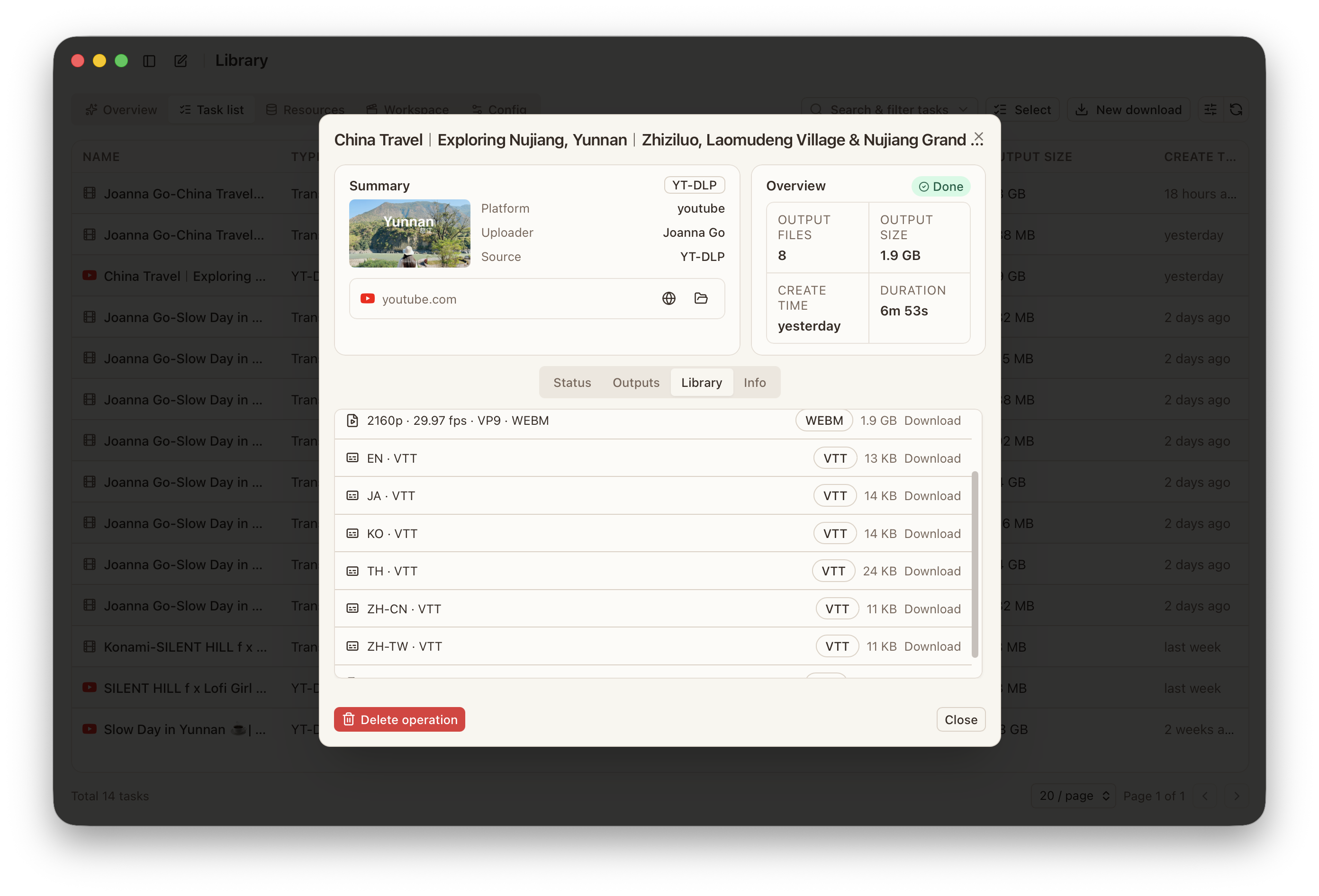
- Submit the task and watch parsing, queueing, download, and output state in the task list.
- Once complete, continue directly into subtitle, transcoding, or follow-up organization work.
What to do with restricted sources
When a source needs authentication, the important step is to fix access conditions first.
- check whether browser cookies are available
- switch to custom cookies if automatic sync is not possible
- use connector cookies where that path is more reliable
Getting access right matters more than small parameter tuning later.
Typical follow-up work
Downloads rarely end the workflow. More often, the next step is:
- extracting or importing subtitles
- transcoding or burning in subtitles
- handing the result to an assistant for research or organization
That continuity is one of the main reasons to do the work inside DreamCreator.