
Mobile Channel Access
Configure Telegram and future channels so the same assistant can keep following work when you leave the desktop.
Current support and direction
DreamCreator currently supports Telegram and is moving toward Feishu and WeChat. The point of channel access is not to replace the desktop. It is to keep a live entry point for follow-up work when you are away from the machine.
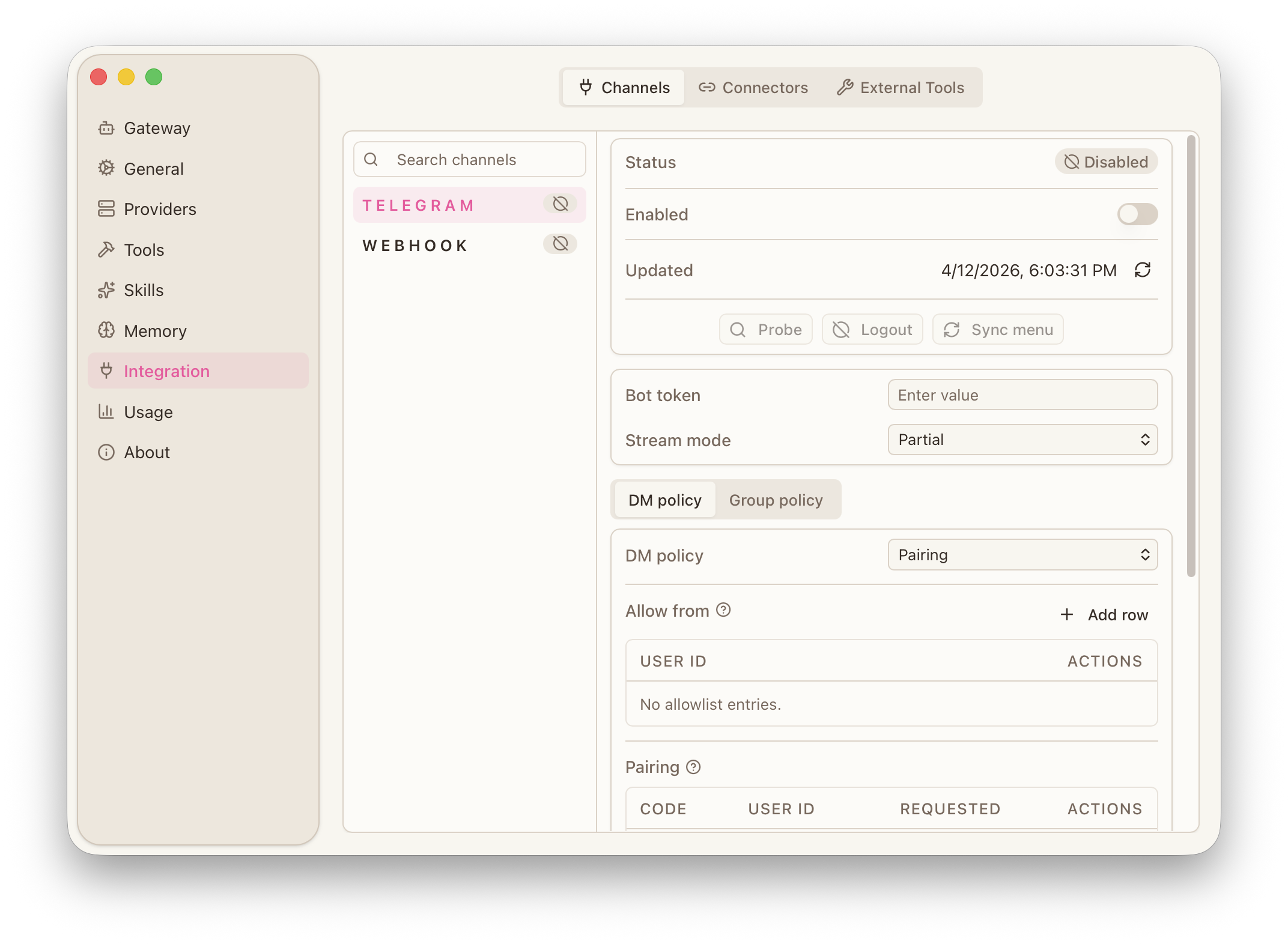
Basic setup flow
- Open the channel or integration settings.
- Configure the required credentials, such as a bot token.
- Set pairing, allow lists, group policies, or group allow lists as needed.
- Configure custom commands or menu sync if the workflow needs them.
- Test with a small real interaction before relying on the setup.
What belongs on mobile
- viewing result or failure notifications
- triggering lightweight follow-up actions
- continuing with an already active context when away from the desktop
What should stay on desktop
Channel access is better treated as an entry point and notification surface. Download-heavy work, subtitle finishing, transcoding, and deep configuration still belong on the desktop.
Security and boundary tips
- only expose the channel to trusted accounts
- keep group access and command scope narrow
- preserve an in-app fallback for important notifications
- disable channels you do not actively use